
CopyIns illustrated tutorial
How to use CopyIns
Choose the website or extension flow and save public Instagram media you own or have permission to use.
Download with the CopyIns website
No extension is required. Copy a supported public Instagram link, parse it in CopyIns, then save an available media file.
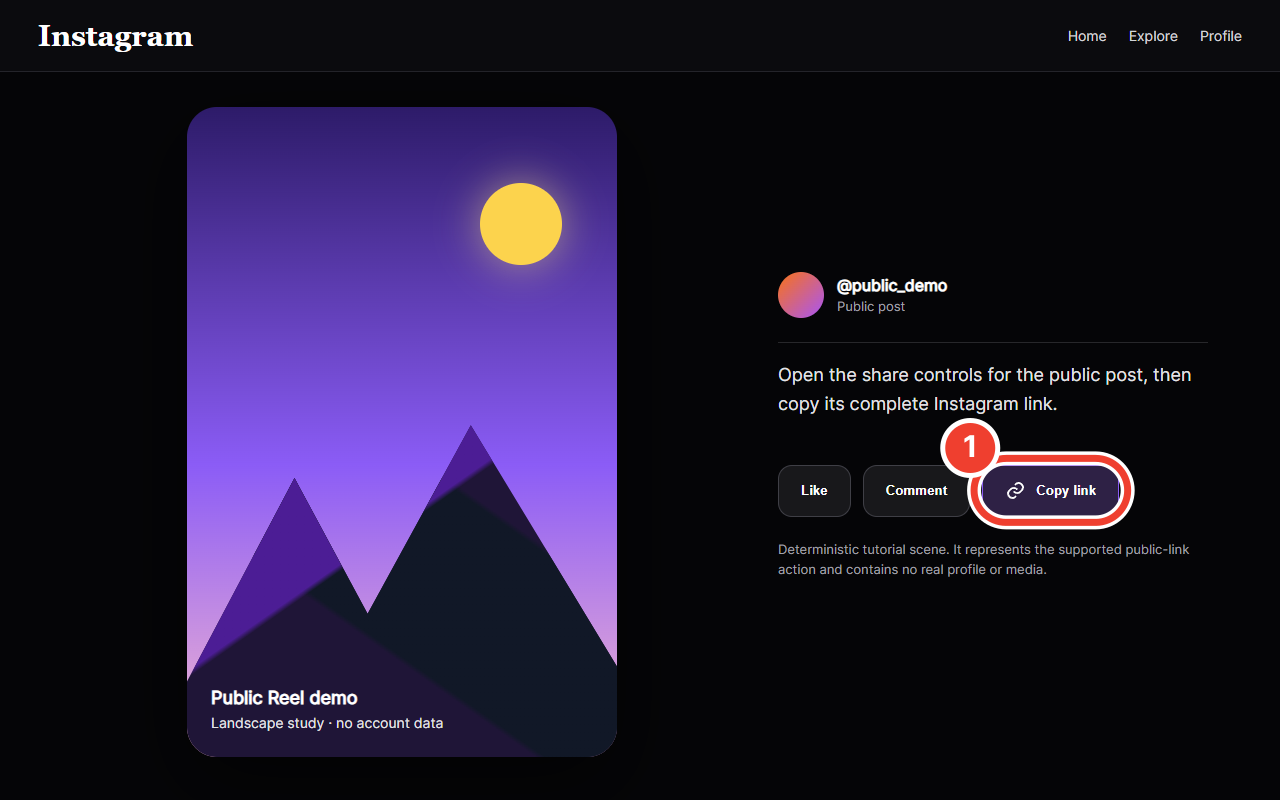
Copy the public Instagram link 1Copy the public Instagram link
Open a public Post, Reel, or Carousel and copy its complete link from the share menu.
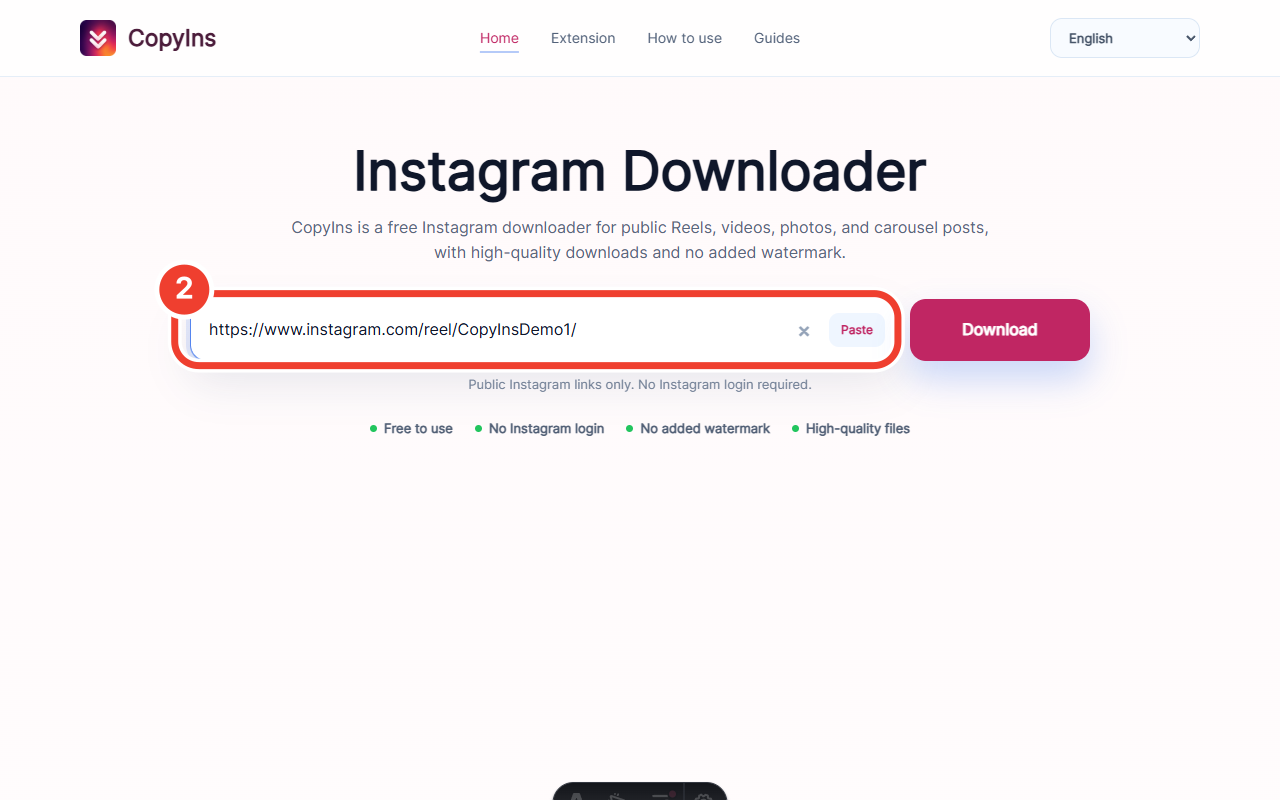
Paste the link 2Paste the link
Return to CopyIns and paste the complete link into the field. Never submit passwords, cookies, or private links.
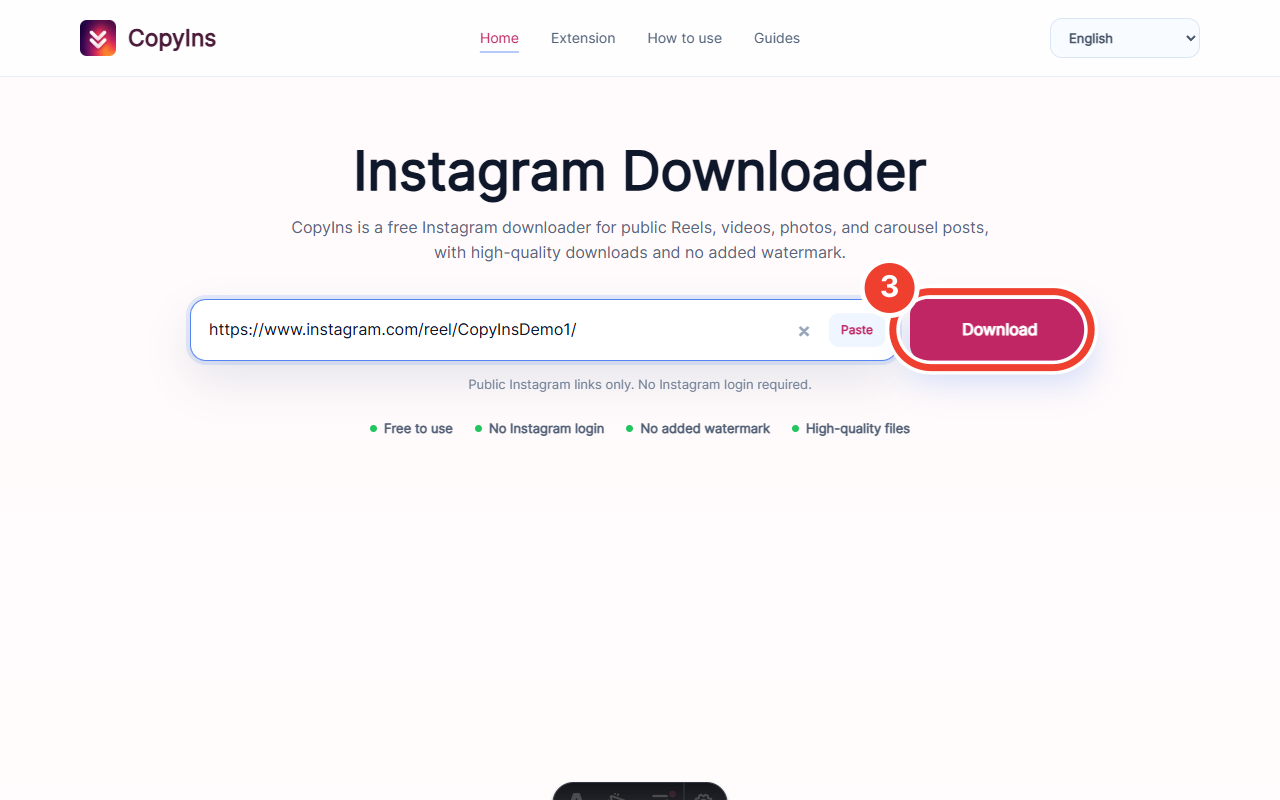
Start parsing 3Start parsing
Select Download and wait while CopyIns checks the public link and lists confirmed media files.
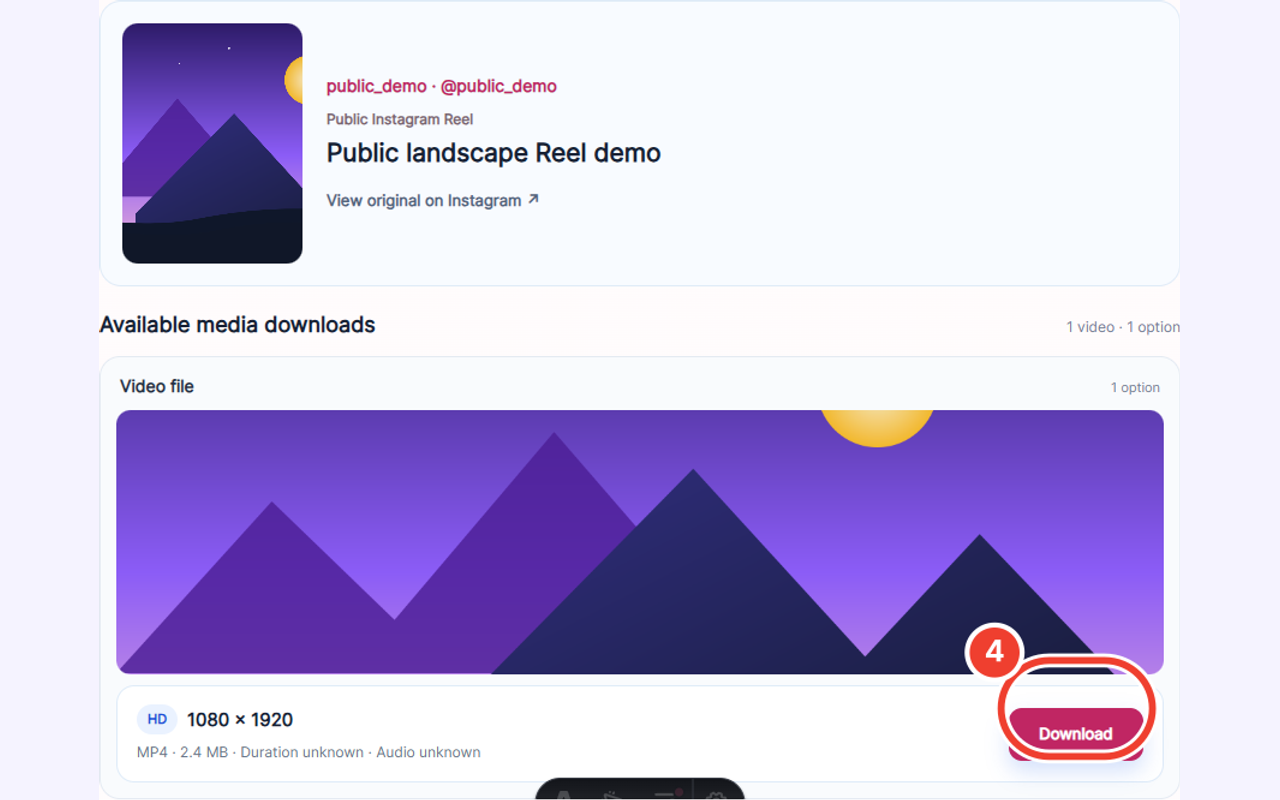
Save the available media 4Save the available media
Select Download for the required image or video. Your browser and device choose the final save location.
Download with the CopyIns browser extension
The extension handles one recognized media item already loaded on the current Instagram page. It does not unlock private, restricted, or unloaded content.
The verified Chrome Web Store URL is not configured yet. The Extension page will show an install entry only after that address is confirmed.
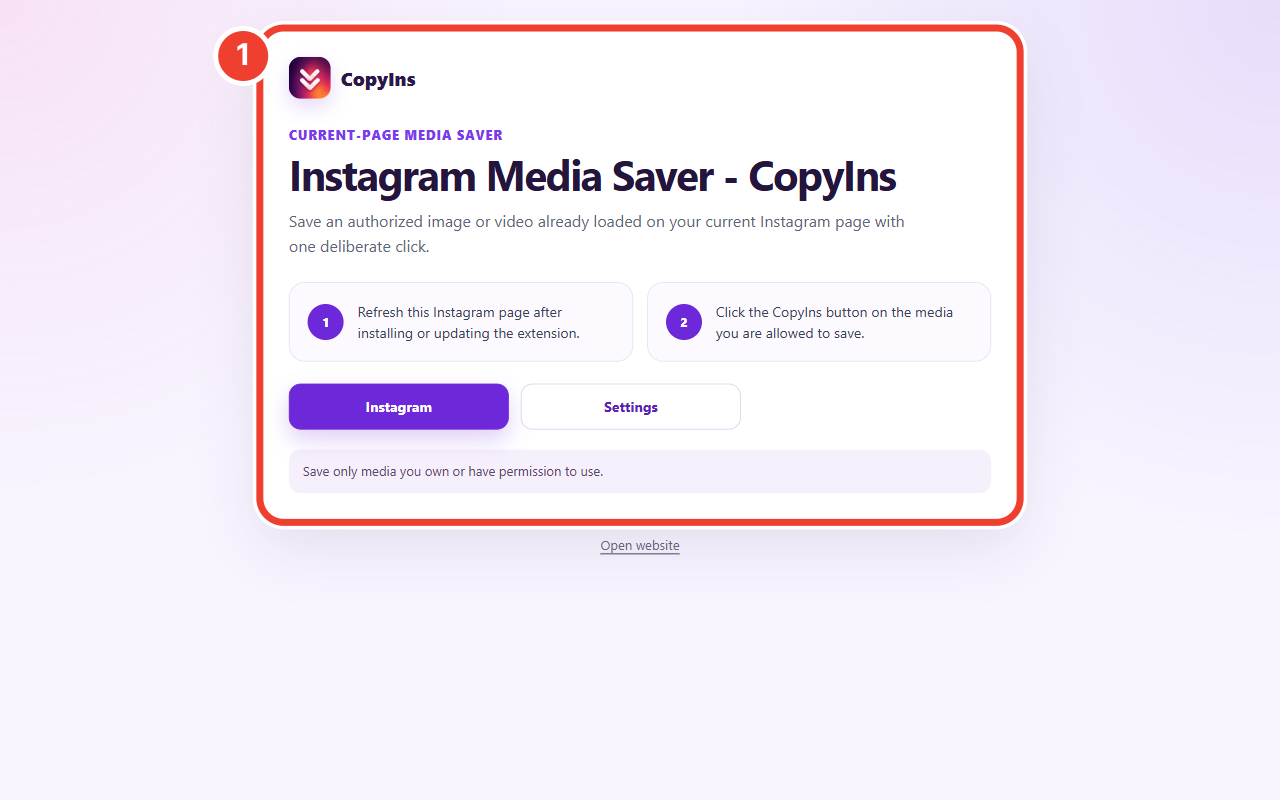
Confirm the welcome page after installation 1Confirm the welcome page after installation
Use the verified store address from the CopyIns Extension page. The browser opens a local welcome page after installation.
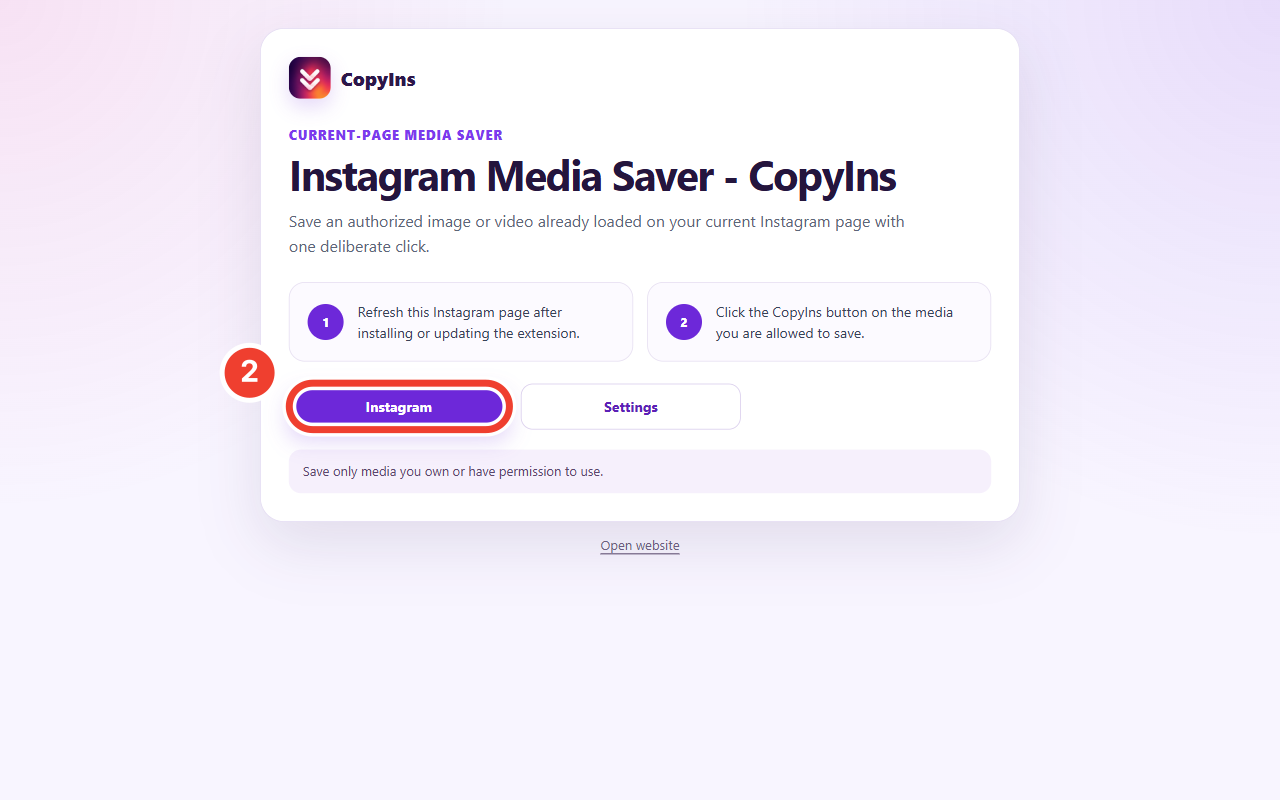
Open Instagram from the welcome page 2Open Instagram from the welcome page
After reading the usage boundary, select Instagram to open it in a new tab.
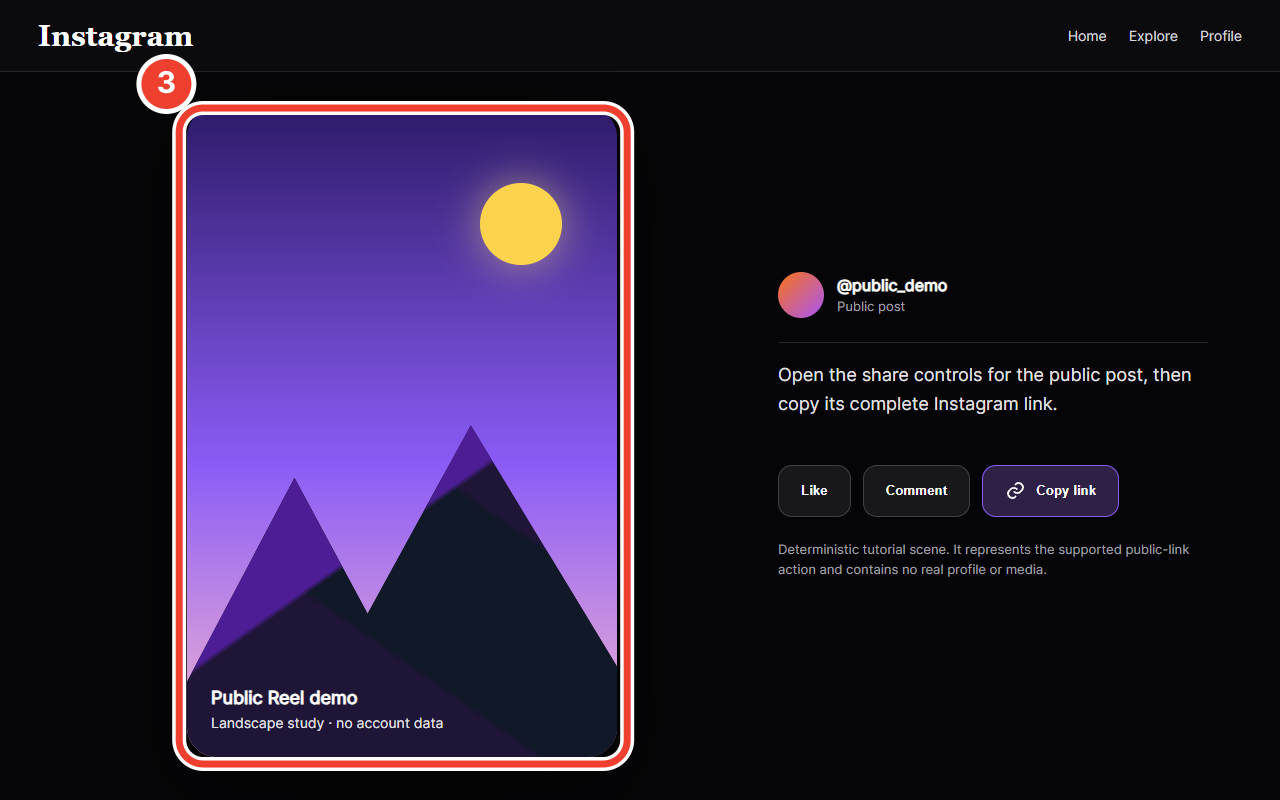
Open a supported public post 3Open a supported public post
Open a public video or image on Instagram and wait for it to load. Refresh the page after installing or updating.
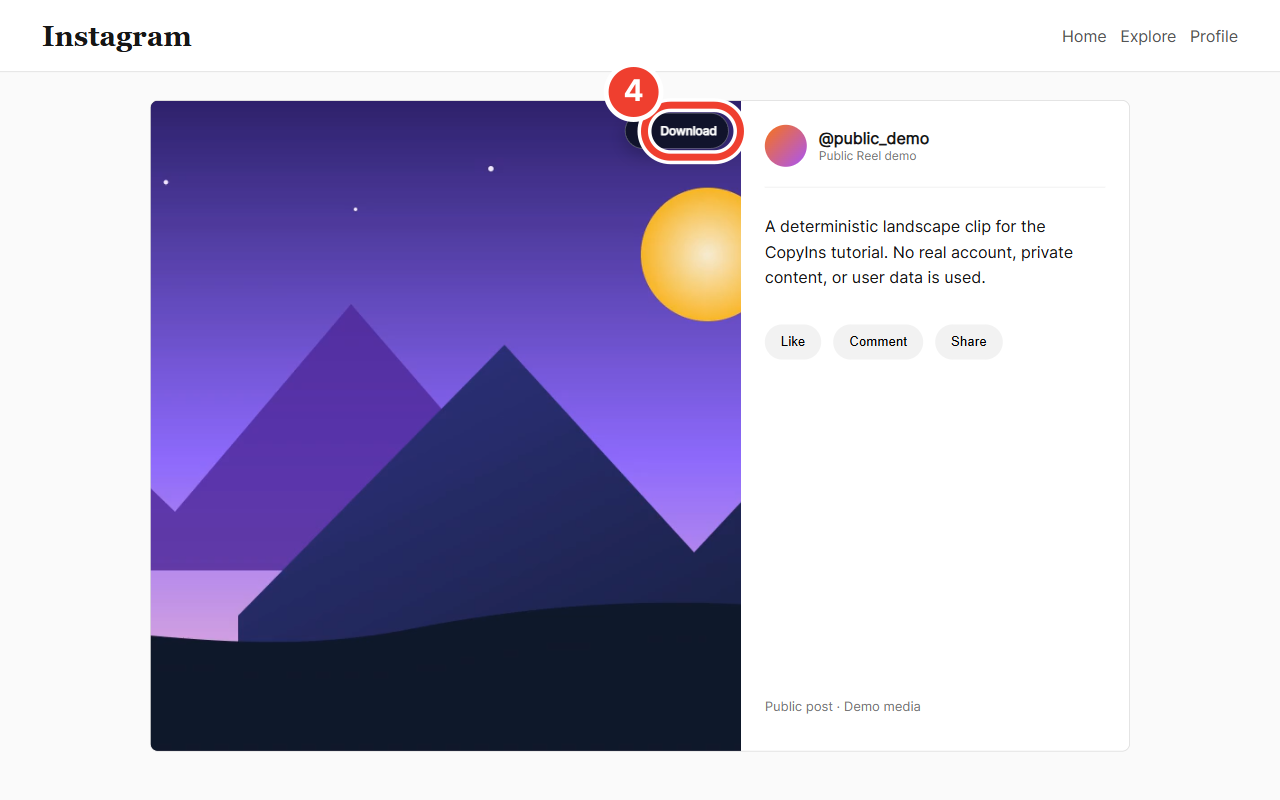
Select the CopyIns download button 4Select the CopyIns download button
Use the CopyIns control on the required media. The extension hands the confirmed source file to the browser download manager.
Frequently asked questions
What is the difference between the website and extension?
The website parses a supported public link you paste. The extension handles one media item already loaded on the current Instagram page. Neither bypasses access restrictions.
Why is the extension download button missing?
Confirm that the page is on www.instagram.com, the media has loaded, and the page was refreshed after installation or update. Private, restricted, or unrecognized media will not show a usable button.
Can CopyIns save private-account or Close Friends media?
No. CopyIns does not bypass login, private-account approval, Close Friends, subscriptions, paywalls, encryption, or DRM.
Use the website for a public link, or review the current extension availability first.